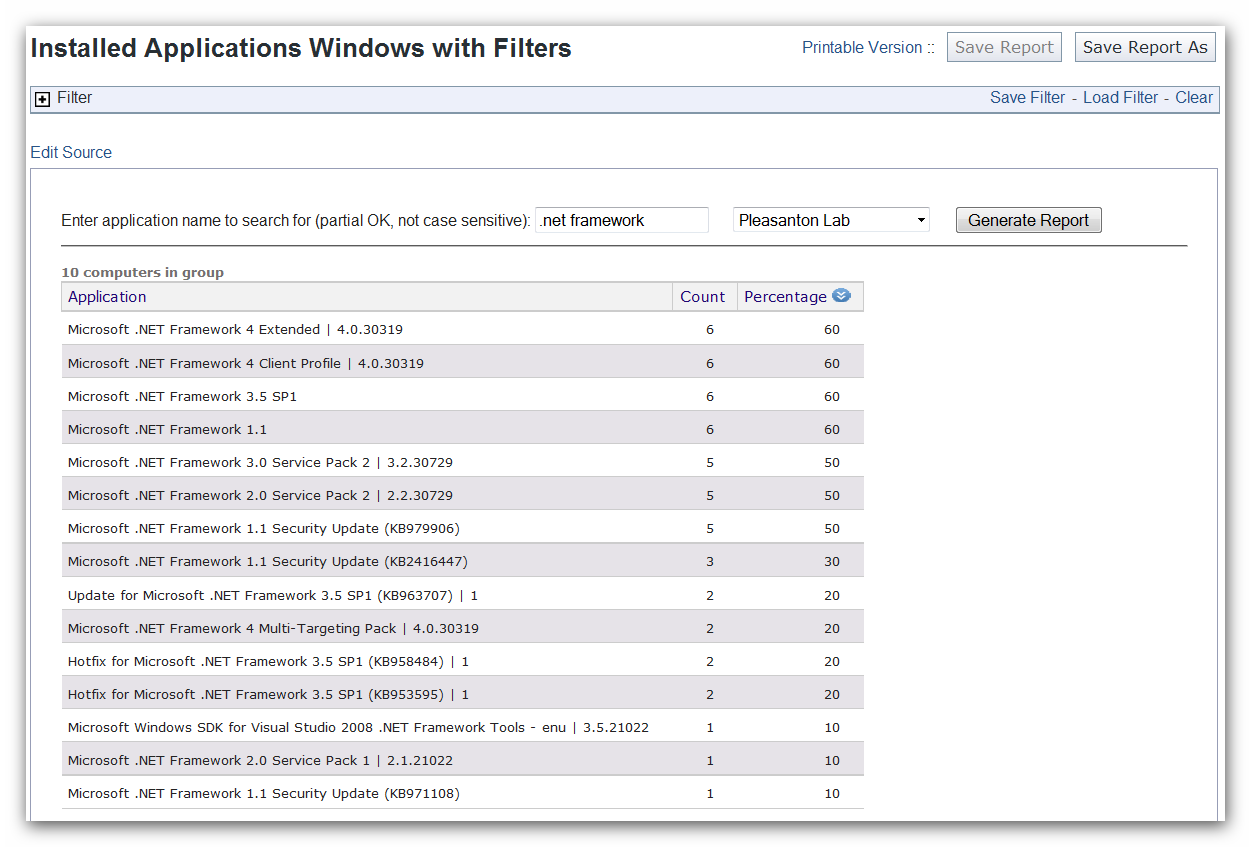
Here is what I’m trying to figure out. Say I want to see machine counts for a particular windows app. I select content then I type in “Application Information (windows)” to narrow it down to that Analysis. So far so good. Then I can click on that and it brings up all of the app counts for all installed apps on every machine. The problem is once in that view I can’t figure out any way to filter by a single app or only give me counts for certain machines like all servers. The only way I’ve been able to get around this is every time I want to filter at this point I have to create a new analysis that is specific to what app or machine group I need. There must be an easier way or am I just SOL?
Unfortunately, as you have discovered this is not easy to do in your version of Web Reports. In 8.1 within “Explore Data” you can split apart results with multiple values (e.g. Installed Applications), filter on individual results (e.g. “Flash”), and then aggregate the results for each value (count of all computers with “Flash”). Then you can filter down to a specific set of computers.
Does the printable version work on these reports. I haven’t tried your new one yet but on the other one when I select printable version it starts a new web page with the title at the top but just sits there like it’s loading. I’ve given it a good 20 minutes and nothing comes back.
Well the report finally came back and I found out why it took so long. It appears that when you click “printable version” it drops all filters so it returns app counts for all computers. I guess that’s why it took forever. Can this be fixed?
Ok tried the new report and that gives me the option to print using the filters. Thanks but I also found an issue with the report. I used the new one and filtered on a computer group populated with 188 servers all running server 2003 sp2. I left the application field blank so it pulled the report for all installed apps. When I look down the list most things seem right. I see 188 installs of the BES client and so on. Then when I get down to the OS I’m missing around 58 servers. It only lists 130 Server 2003 SP2 installs. Any ideas?
You can export to PDF for printing, or copy and paste the results into Excel.
Thanks Boyd but the issue is I’m very limited in what I can do. We don’t have access to the Webreports server. We are a single district (3 states) out of the national system. Getting them to install anything at the national(system level) takes an act of god.
…when I get down to the OS I’m missing around 58 servers. It only lists 130 Server 2003 SP2 installs. Any ideas?
What you are seeing has less to do with the report, but with the data collected via the Analysis.
The analysis is returning Installed Applications by scanning the “HKLM\SOFTWARE\Microsoft\Windows\CurrentVersion\Uninstall” registry.
Looks like Server 2003 SP2 is registered as being installed, which makes sense.
However, if a server does not have a service pack, it will not show up.
We need to track this by going back to the analysis in the Console, and investigate a server if it is missing an installed application that you are expecting.
Are you trying to report on the OS installed, which would not work well with this report right now.
You’re right in that it’s the data being collected that’s the problem. They all have SP2 but when I physically checked these machines the OS is not showing up in add/remove. Why these 60 machines are doing this I don’t have a clue. I used an OS analysis to pull the data I needed. Thanks.
Perhaps they Windows 2003 was installed on those systems with installer media that already contained SP2? In other words, they didn’t download and install SP2 via Windows Update.