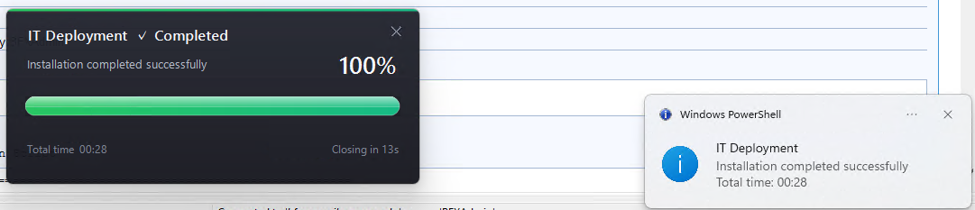
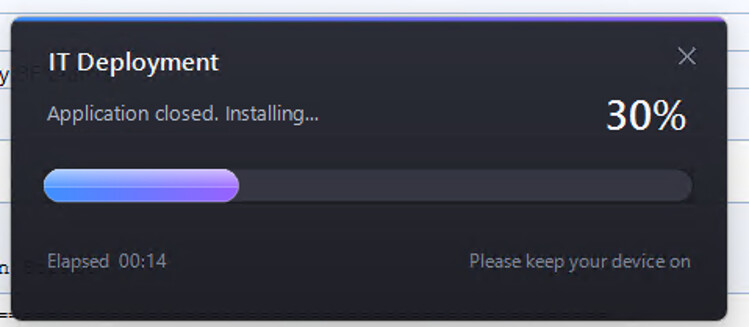
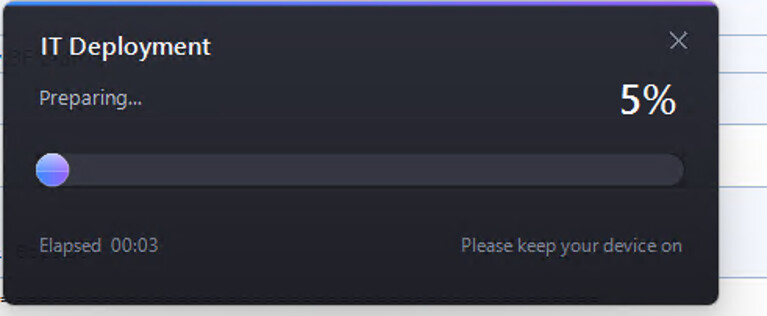
I am currently working on refining our task kill and application deployment workflows. While we can already notify users to save their work before termination using native BigFix features, I am looking to implement additional features.
Specifically, is it possible to integrate a live, percentage-based progress bar within the action script to track the status of the downloading and installation steps in real time, accompanied by a timer showing the elapsed time?
Additionally, I want to ensure the user receives a notification on their screen once the 100% completion is successfully achieved. Any guidance or script examples for achieving this would be highly appreciated.
@vk.khurava@JasonWalker looking for your expertise. If this could be possible or not. If possible what will be the best possible way to implement this.
Hi @Rishabh there are a few reasons why BigFix cannot display a true real-time progress bar:
Prefetch downloads complete before the action script starts, so download progress cannot be tracked through the action itself.
SYSTEM context: The BigFix Client runs as SYSTEM, so anything launched directly by the action is not visible to the logged-on user.
Messages tab: The native "Display message while running" option supports only static text, without a dynamic percentage or timer.
Possible alternatives:
Simple: Enable "Display message while running" under the Messages tab in the Take Action dialog.
Better: Have the action script write progress updates (e.g., 30%, 90%, 100%) to a text file after each step. A separate PowerShell window running in the user's session can read this file and display a progress bar, elapsed timer, and completion notification.
Last but not least, this is indeed a good feature suggestion! I'd recommend raising an RFE (Request for Enhancement) with HCL. If enough customers support and vote for it, it may gain priority for implementation in a future release.
FYI – Update: I tested a small Action Script to validate the second option I suggested earlier. You can use the script below to test it on your end.
// ---- Launch UI only if a user is logged on (non-blocking) ----
if {exists logged on users}
override run
runas=currentuser
hidden=true
run powershell.exe -NoProfile -ExecutionPolicy Bypass -WindowStyle Hidden -File "C:\ProgramData\BFProgress\Show-Progress.ps1"
endif
Thanks @vk.khurava for testing this approach and sharing the example.
I have a few follow-up questions because I'm trying to understand how to implement this correctly in an actual BigFix application deployment.
I tested the Action Script you provided directly through BigFix on a couple of test devices. The action executed, but I did not receive the PowerShell progress/message window in the logged-on user's session.
Could you please provide a little more detail on the following?
Can Show-Progress.ps1 be dynamically created by the BigFix Action Script itself before it is launched, rather than deploying the .ps1 file separately?
For testing purposes, what should the contents of Show-Progress.ps1 be? In the example Action Script, I see: -File "C:\ProgramData\BFProgress\Show-Progress.ps1"
but I'm not sure how this PowerShell script should initially be created or deployed.
What is the recommended way to launch the PowerShell UI in the currently logged-on user's interactive session, considering that the BigFix Client and Action Script are running as SYSTEM?
Is there a simple test Action Script that I can run first to confirm that BigFix can successfully display a PowerShell message/progress window to the logged-on user before integrating it into an actual application deployment?
Once that is working, how would you recommend integrating it into an existing application installation? For example:
How should installer failures and timeouts be handled so that the progress UI can display Failed, Completed, or Restart Required, rather than relying only on predefined percentage values?
If a restart is required after installation, can the same UI provide Restart Now and Postpone options and return the user's selection back to the BigFix action?
Ultimately, I'm trying to build a reusable solution where the BigFix installation continues to run as SYSTEM, while the logged-on user receives a separate interactive PowerShell UI showing the deployment status.
If possible, could you share a complete working test example containing both the BigFix Action Script and Show-Progress.ps1? That would help me validate the basic functionality first and then integrate it into my existing application installation Fixlets.
Ah, that's because I forgot to include the PowerShell script that actually generates the progress bar. I used Copilot to help create it and have shared the complete Show-Progress.ps1 script below, which you can modify as needed.
yes, you can create it directly within the BigFix Action Script using createfile until EOF, so there's no need to deploy it separately.
Shared.
This is already covered in the Action Script. Use override run with runas=currentuser rather than wait, so the UI launches without blocking the main action.
`` override run runas=currentuser hidden=true run powershell.exe -NoProfile -ExecutionPolicy Bypass -WindowStyle Hidden -File "C:\ProgramData\BFProgress\Show-Progress.ps1"
The Action Script I shared in my earlier post is already a basic example for testing the progress UI. Now that I've provided the missing PowerShell script, you should have everything needed to test it.
Simply update the status file before each installation step, for example: Preparing (5%) → Closing application (20%) → Installing (40%) → Finalizing (90%) → Completed (100%).
Use the installer's actual exit code rather than relying on predefined percentages.
override wait
hidden=true
timeout_seconds=1800
disposition=terminate
wait msiexec.exe /i "__Download\app.msi" /qn /norestart
parameter "rc" = "{if exist exit code of action then exit code of action as string else "-1"}"
Based on the exit code, update the status file accordingly: 0 → 100|Completed 3010 → REBOOT|Installation completed. Restart required
Any other code, including a timeout → FAIL|Installation failed
You can then use exit {parameter "rc"} to return the installer result to BigFix.
I would recommend using BigFix's native Post-Action → Restart computer after action completes functionality rather than building separate restart controls into the PowerShell UI.